March 3, 2020
Hello friends,
Here are our desktop wallpapers for March 2020. March is about spring! Spring is the blossom, flowers, warm wind and rain, lots od sunny days.
So this month desktop wallpapers are about flowers!

All calendar desktop wallpapers are on our website.
Have a good month!
PS:
Spring screensavers
Saint Patricks Day screensavers
Tags: march 2020, march 2020 desktop wallpapers, screensavers fpr windows, screensavers with a calendar, spring desktop wallpapers
Posted in News | Leave a Comment »
October 21, 2019
Hello friends!
Halloween is coming. We are sure that you have decorated your houses and other places for Halloween with black spiders, skeletons and other Halloween things).
Let`s add some decorations to your monitors too.
Have a look at our collection of free screensavers for this holiday.
They are waiting for you here.
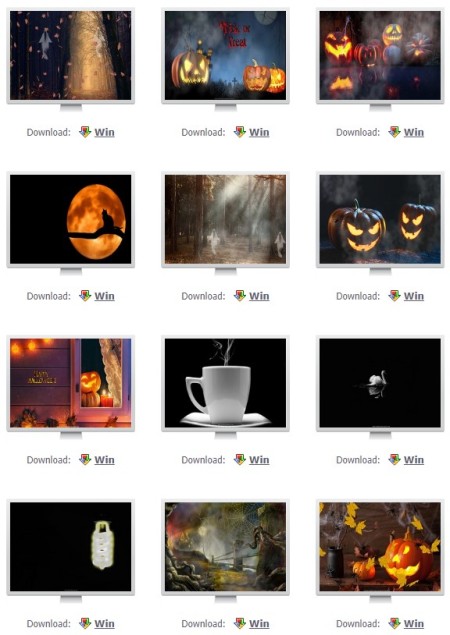
Have a funny horror Halloween time!
http://www.newfreescreensavers.com
Tags: desktop wallpapers for Halloween, hallooween decorations, halloween screensavers, pumpkins for Halloween
Posted in News | Leave a Comment »
July 8, 2019
Hello friends!
Here we are with new screensavers and desktop wallpapers for July.
Hope you have a great summer.
So here are new screensavers, as usual, they contain a slight animation.

And of course we have created new desktop wallpapers with a calendar for July 2019:

Have a good summer time,
Newfreescreensavers.com Team
Tags: calendar for July 2019, clock screensavers, desktop wallpapers, flowers screensavers, July 2019, screensaver for windows, summer
Posted in News | 1 Comment »
April 26, 2019
Hello friends,
Here are new animated screensavers that shows your local time and make your monitor different from others.
Check us back, select and enjoy a new view of your monitor.
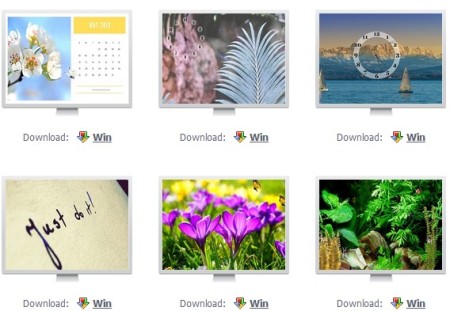
Have a good day,
Newfreescreensavers.com Team
34.052234
-118.243685
Tags: calendar screensavers, download for free, flowers screensavers, for windows, free screensavers, may2019, nature, newfreescreensavers, with clock
Posted in News | 1 Comment »
April 1, 2019
Hello friends,
Happy April to you all!
Here are new free desktop wallpapers with calendar for April 2019.
To download these desktop wallpapers go to Newfreescreensavers.com
Join us on Facebook
40.712775
-74.005973
Tags: April 2019, beautiful photos for monitor, desktop wallpapers, pictures for a monitor, wallpapers with a calendar
Posted in News | Leave a Comment »
March 24, 2019
Hello screensavers` fans!
This is a new update of screensavers for a spring season. They are bright and colorful. Hope they will spruce up your monitor and get you in a blossoming mood.
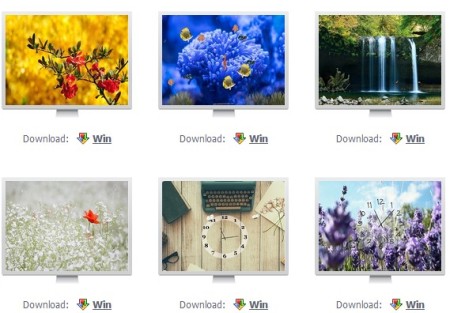
Select and download a new screensaver for Windows.
Also join us on Facebook
Tags: free screensavers, new screensavers, screensavers with a clock, screensavers with flowers, spring, waterfall screensavers
Posted in News | Leave a Comment »
March 1, 2019
Hello friends.
Spring has come. Let`s start a spring reloading and begin it from changing our desktop wallpapers, for example.
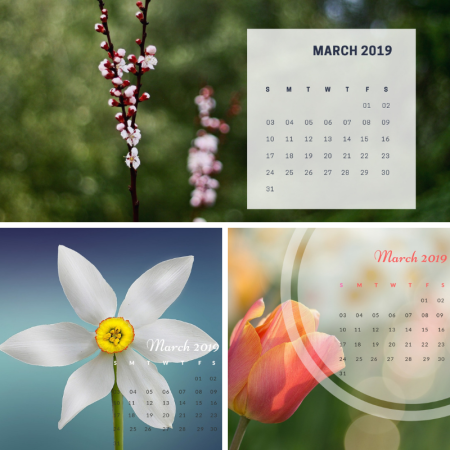
Calendar desktop wallpapers for March 2019 download here.
Calendar screensaver is here.
Have a good first month of this spring.
Newfreescreensavers.com
Tags: beautiful spring, calendar desktop wallpapers, calendar screensavers, download for free, march 2019 calendar, newfreescreensavers, spring screensavers
Posted in News | Leave a Comment »
February 18, 2019
Hello friends,
February completely swallowed us by its blizzards and changing weather.
To cheer you up, we have release new desktop wallpapers. Sometimes it is worth to change something a little bit around you, and our life begins to play in bright colors.

Have a good day!
34.052234
-118.243685
Tags: desktop wallapers, download for free, dun, photos for desktop, spting, summer, summer mood, wallpapers for computer desktops
Posted in News | 1 Comment »
February 6, 2019
How about updating of your collection of screensavers dedicated to Saint Valentines Day.

We hope they will put you into a romantic mood.
Newfreescreensavers.com Team
36.778261
-119.417932
Tags: clock, clock screensavers, desktop wallpapers, February 14, hearts, love, saint valentines day
Posted in News | Leave a Comment »
February 1, 2019
Hello friends,
February 1 is the perfect day to release calendar desktop wallpapers and screensavers.
Today you will find 3 desktop wallpapers with a calendar, now they are available in English and in Russian.
On the website it looks like this:
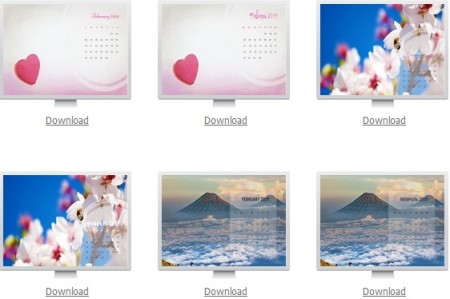
To download a screensavers with a calendar on February 2019 , please click here.
Visit www.newfreescreensavers.com, select a wallpaper with a calendar you like most of all.
Have a good day.
Newfreescreensavers.com Team
40.712775
-74.005973
Tags: calendar February 2019, dektop wallpapers with calendar, desktop wallpapers, download for free, for windows, spring, winter
Posted in News | Leave a Comment »


 Newfreescreensavers's Blog